
How to Sign In to an iCloud Account with the Code Link
October 19, 2026
BuyiCloudAccounts Support Desk· Customer support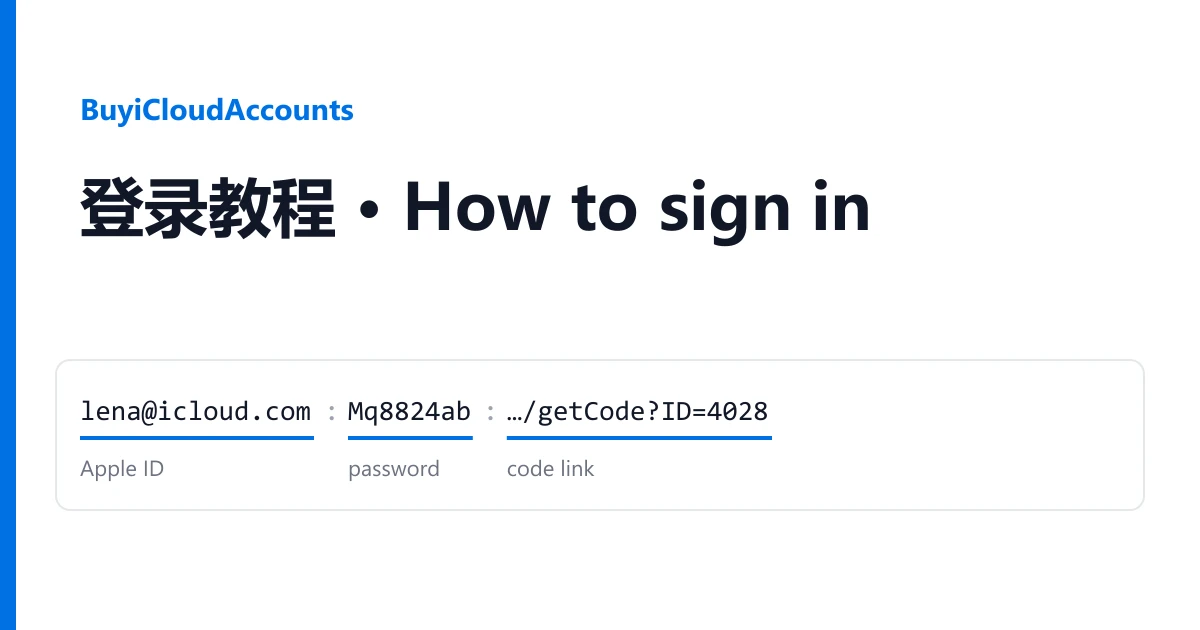
Each account from BuyiCloudAccounts is one line on your order page with three parts: the Apple ID, which is also the address you sign in with, its password, and a link. Most of these accounts have two-factor authentication on, so after the password Apple asks for a six-digit code. You do not hold the trusted phone. The link is how you read that code.
Reading your line
lena.park@icloud.com----Mq882417ab----http://203.0.113.24:8080/api/getCode?ID=402817
Apple ID (email)    ----  password  ----  code link
The parts are split by four hyphens. Copy each one on its own. The address is not always @icloud.com; some listings use other domains, and you sign in with it exactly as delivered. Listings call the link the "link of telephone" or "link of mac". Both show the code. Keep the link safe: until your own phone number is on the account, it is your only way to get codes.
Signing in
- Sign in on the web first, at icloud.com, with the address and password. Several listings warn against adding the account in an iPhone's Settings; follow your listing.
- When Apple asks for the verification code, open the link in a new tab. Wait a few seconds and refresh until the code appears.
- Type the six digits. Open Mail in iCloud to check the inbox.
- Then, at account.apple.com, change the password and replace the linked phone number with your own, as the listings advise.
When it does not work
The link shows no code. Refresh again after a few seconds. If still nothing, ask Apple to resend the code, then refresh. Always use the newest code; older ones are refused.
The browser says the link is not secure. Many code links are plain http with a port number. That is expected; the page only shows codes.
iCloud Mail is missing. Check the listing title. Listings that say iCloud is not activated are for the App Store, not for mail.
Warranty
If an account does not work as its listing says, open a ticket from your order page within the warranty window shown on the listing. Name the Apple ID and attach a screenshot. It is replaced from the same listing, or refunded if the listing has run out. Signing in never voids the warranty. Bans caused by bulk or automated activity are not covered. Other kinds are in the catalogue.